
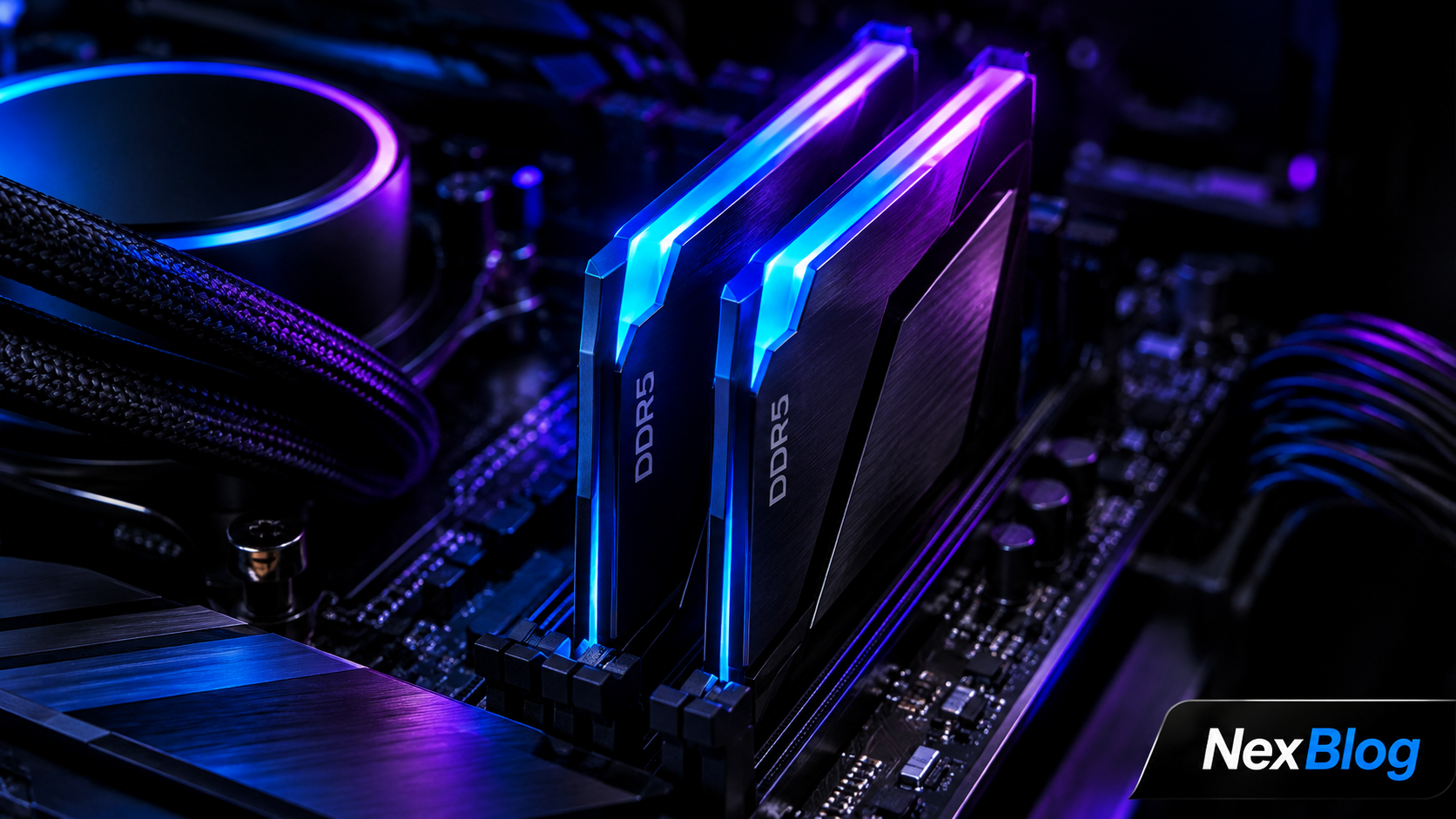
I spent three weeks testing different RAM configurations on the same machine — 8GB, 16GB, 32GB, and 64GB — doing the exact tasks most people actually do. Not synthetic benchmarks. Real work. Here is what I found.
The Short Answer by Use Case
- Basic use (browsing, YouTube, Office): 8GB is survivable, 16GB is comfortable
- Gaming: 16GB minimum, 32GB if you stream or run Discord + browser alongside
- Video editing (1080p/4K): 32GB minimum, 64GB for large projects
- AI/ML work locally: 32GB minimum, more is always better
- Programming and development: 16GB for most, 32GB if you run VMs or Docker
What RAM Actually Does
RAM (Random Access Memory) is your computer's short-term memory. Everything your CPU is actively working on — the browser tabs you have open, the game level currently loaded, the video timeline you are editing — lives in RAM. When you run out, your system starts using your storage drive as emergency RAM, which is called paging or swapping. This is catastrophically slow. An SSD doing paging work is roughly 10-50x slower than actual RAM.
This is why "my computer got slow after opening Chrome with 20 tabs" happens. You ran out of RAM and started hitting storage.
8GB RAM in 2026: Is It Enough?
Honestly, 8GB is tight in 2026. Windows 11 itself consumes around 3-4GB at idle. That leaves you 4-5GB for everything else. Chrome with five tabs open uses around 1.5-2GB. So with a few browser tabs, Spotify, and Discord running, you are already at the edge.
Where 8GB still works: light Chromebook-style use, basic document editing with minimal multitasking, or a dedicated gaming console-style setup where you close everything except the game.
Where 8GB fails: the moment you try to do two things at once. Video call while screen sharing while having reference tabs open — you will feel every frame stutter.
16GB RAM: The Sweet Spot for Most People
16GB is where 2026 computing starts feeling genuinely comfortable. In my testing, a typical workload of Chrome (15 tabs), VS Code, Slack, Spotify, and a terminal session used about 11-12GB. That left a comfortable buffer.
For gaming, 16GB covers virtually every title released in 2026. Games themselves rarely use more than 8-10GB, but the OS, game launcher, Discord overlay, and browser in the background push total usage into the 12-14GB range. 16GB keeps you from hitching.
Recommended configurations: two sticks of 8GB in dual-channel. Dual-channel is crucial — two 8GB sticks perform meaningfully better than a single 16GB stick because they give your CPU two memory channels to read from simultaneously.
32GB RAM: When You Will Actually Notice the Difference
I upgraded from 16GB to 32GB on my main machine and noticed the difference in three specific scenarios:
Lightroom and Premiere editing: Lightroom's preview caching is RAM-hungry. With 32GB, I could keep a catalog of 500 RAW photos cached in memory and scrub through them without the spinning wait cursor. At 16GB, every fifth photo required a reload.
Running a local AI model: Running Llama 3 locally for coding assistance consumed about 18-20GB. At 16GB, it was impossible. At 32GB, it ran with enough overhead for normal work alongside it.
Browser-heavy research work: Having 40+ research tabs open, a PDF reader, a writing app, and Slack simultaneously pushed usage to 22-25GB. 32GB handled it without swapping.
DDR4 vs DDR5: Should You Care?
If you are buying new in 2026, DDR5 is the right choice for a new build on Intel 12th gen or newer, or AMD Ryzen 7000 series or newer. DDR5 offers higher bandwidth at lower voltages, which matters more for integrated graphics (like AMD's APUs) and AI workloads than for traditional gaming.
If you have an older system still using DDR4, do not replace your motherboard just to get DDR5. The real-world performance difference in day-to-day use does not justify that cost. More DDR4 RAM beats less DDR5 RAM almost every time.
Speed matters more than most people realize. DDR5-6000 versus DDR5-4800 can show a 5-15% difference in memory-sensitive tasks. If you are building new, spend the extra $20 to get a faster kit rather than the baseline speed.
RAM Speed and Timings: The Details That Actually Matter
RAM speed (measured in MHz or MT/s) and timings (the CL numbers like CL30) both affect performance, but in most workloads, speed matters more than timings for AMD systems and timings matter more for Intel. A good rule: for AMD Ryzen, prioritize speed. For Intel, a lower CL at the same speed is a solid upgrade.
Enable XMP or EXPO in your BIOS. Your RAM ships at a conservative default speed (often DDR5-4800) even if the kit is rated for DDR5-6000. Enabling XMP/EXPO in your motherboard BIOS unlocks the speed you paid for. This is a two-minute change that is free performance.
How to Check Your Current RAM Usage
On Windows: open Task Manager (Ctrl+Shift+Esc), click the Performance tab, and select Memory. You will see current usage, available RAM, and how much is cached. If "In Use" plus "Modified" regularly exceeds 80% of your total, you are a candidate for an upgrade.
On macOS: open Activity Monitor, click Memory, and look at "Memory Pressure" at the bottom. A consistently yellow or red pressure graph means your system is regularly needing to compress memory and would benefit from more RAM.
My Recommendation
Buy 16GB if you are on a budget and do normal computing tasks. Buy 32GB if you edit media, run local AI tools, use Docker, or simply want headroom for the next four years. Skip 64GB unless you have a specific workload that demands it — content creation at scale, machine learning training, or professional video work with massive project files.
Whatever you buy: always get two matched sticks and enable XMP/EXPO. These two things cost nothing extra and make a measurable difference.